
Keeping your inbox organized can be overwhelming, especially if you receive dozens of emails every day, making it easy to lose track of important and urgent emails.
Luckily, Gmail makes it easy to filter unread emails so you can focus only on what needs your attention. It’s fast, straightforward, and once you set it up, it saves you from constantly losing track of new messages.
In this quick setup guide, you’ll learn how to create a Gmail unread filter step-by-step, a setup that will make day-to-day email management a whole lot easier, saving you time and allowing you to focus on what you really need to.
Benefits of Using the Gmail Unread Filter
A cluttered inbox makes it easy to overlook important messages. Filtering unread emails in Gmail provides a clearer, more organized view of what still requires your attention.
- Stay organized – Instead of scrolling endlessly, you’ll see only the emails you haven’t opened, keeping your inbox tidy.
- Save time – A Gmail unread filter brings new messages to the front so you don’t waste time sorting through old conversations.
- Boost productivity – By focusing on unread emails first, you can reply to urgent messages quickly and leave less important ones for later.
- Improve focus – Using the Gmail unread filter will help you concentrate only on the emails that actually need your focus and attention, helping you stay on task without distractions.
- Reduce stress – Separating unread emails makes your inbox feel lighter and easier to manage.
Step-by-Step Guide: Gmail Unread Filter Quick Setup
For a quick and easy setup follow these steps:
Step 1: Open Gmail and log in to your account.
In the search bar at the top, type:
is:unread
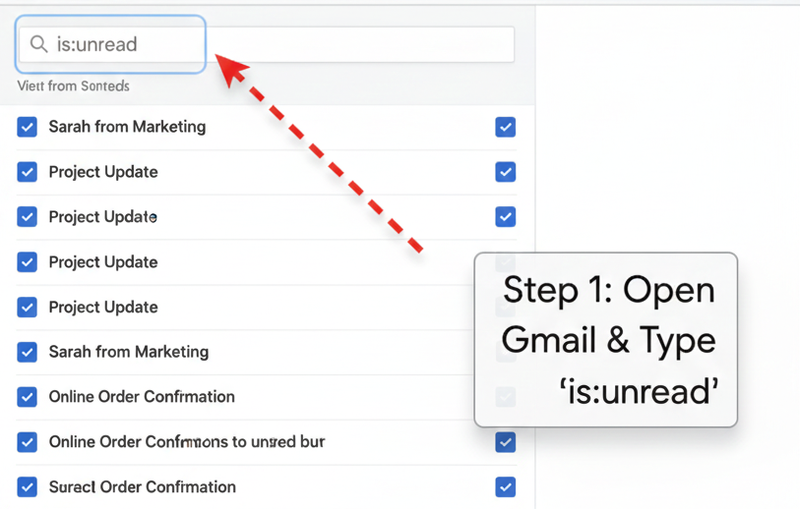
Step 2: This instantly shows all your unread emails.
Step 3: To make this a reusable filter:
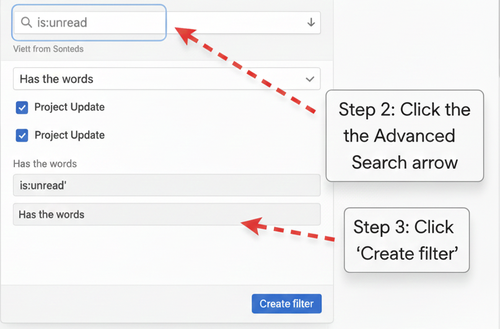
- Click the downward arrow in the search bar (Advanced Search).
- In the "Has the words" field, type
- Click Create filter.
Step 4: Choose what you want Gmail to do with unread emails, such as:
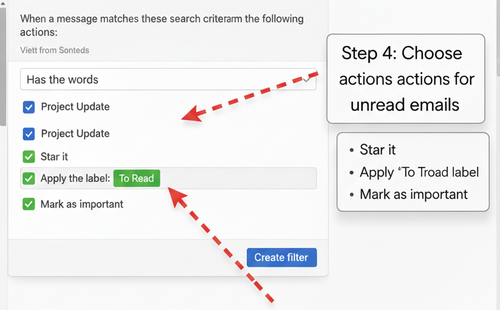
- Star it for quick spotting.
- Apply a label like “Unread” or “To Read.”
- Mark as important to prioritize.
Step 5: Hit Create filter again to save.

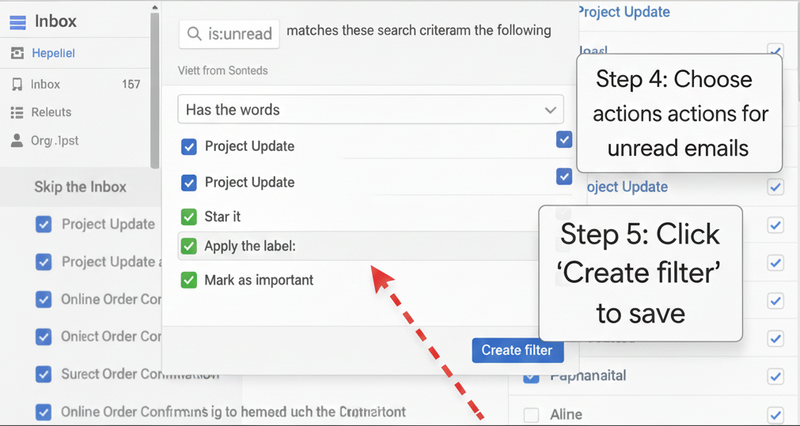
Now, whenever you click that label or filter, you’ll instantly see your unread messages only. If you would like to know more about using labels and filters in Gmail, you can find out everything you need to here. (hyperlink to last article)
Tips for Keeping Your Gmail Inbox Organized
- Use labels like “Work,” “Personal,” or “Priority” alongside the unread filter.
- Combine filters (e.g., is:unread AND from:[email]) to track unread emails from specific people.
- Regularly clear old unread emails to avoid clutter.
- Star or pin important unread emails so they stand out at the top of your inbox.
- Archive messages you don’t need immediate access to instead of deleting them, keeping your inbox tidy but searchable.
- Schedule a weekly “inbox review” to catch anything you may have missed.
Filter Your Mail with Emailgurus
Looking for an easy way to manage your emails? Emailgurus makes the process simple by keeping your inbox organized. You can try it today, for free, and see the difference it will make!
FAQ
1. Can I filter unread emails on Gmail mobile app?
Yes. Open the Gmail mobile app and type is:unread in the search bar and you’ll see all unread messages.
However, advanced filters (like auto-labeling) can only be created on desktop.
2. How do I mark all unread emails as read in Gmail?
Search is:unread, click the select all box at the top, and then choose Mark as read from the menu. If you have more than one page of unread emails, Gmail will show an option to select all conversations.
3. Can I filter unread emails from specific people?
Yes, you can use a combined search query like:
is:unread from:[email@example.com]
This will only show unread emails from that sender.
4. Can I automatically label unread emails?
Yes, when creating a filter, add is:unread in the search criteria and select Apply label → choose or create a label. Gmail will automatically tag those unread emails for you.
5. What’s the fastest way to see unread emails without filters?
Type is:unread directly into the search bar anytime—you’ll instantly get a list of unread messages.
In Conclusion
Setting up a Gmail unread filter is one of the easiest ways to improve email management. With this quick setup, you can instantly pull up only unread messages, helping you stay organized and focused on what you need to. This easy setup ensures you never miss an urgent email again, saving time and reducing stress. Whether you stick with the simple is:unread search or create a custom filter with labels and rules, using a Gmail unread filter will make email management a lot easier and more efficient.